Typing invoices into a spreadsheet by hand is slow, and one wrong digit is hard to spot later. In this tutorial I set up a free n8n workflow that does the typing: you upload an invoice to a small form, Google’s Gemini reads it, the workflow checks the numbers, and a new row lands in your Google Sheet marked Needs review.
You still have the last word. You open the invoice, compare the row and set it to Approved or Rejected. The checks show you where to look first. Skip to the download.
Watch it run
The video is in Hindi, with Hindi captions. Every step is also written out below.
What you need
- n8n 2.x, on n8n Cloud or self-hosted. I used n8n 2.45.7, self-hosted on Windows. New to n8n? Start with n8n for beginners.
- A Gemini API key from Google AI Studio. Check the free tier’s limits and terms there.
- A Google account, for Google Sheets.
- The free template: the workflow file, two sample invoices and a setup guide. Get it below, or read more on the template page.
How the workflow works
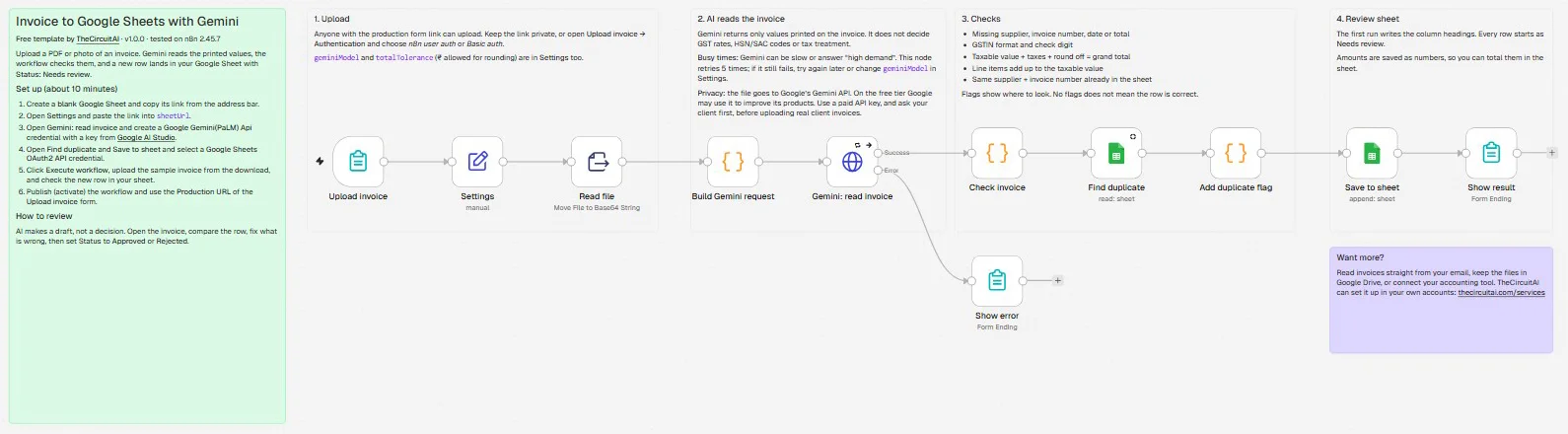
The workflow has four parts, and each part has a note on the n8n canvas that explains it:
- Upload: a form with one field. It takes a PDF, JPG, PNG or WEBP file.
- AI reads the invoice: Gemini returns only what’s printed on it: supplier and GSTIN, invoice number and date, taxable value, CGST, SGST, IGST, cess, round off, grand total and every line item.
- Checks: the workflow flags anything that looks wrong (the list is below).
- Review sheet: one new row per invoice, with Status Needs review and the flags next to it. Amounts are saved as numbers, so you can total them.
What the checks catch
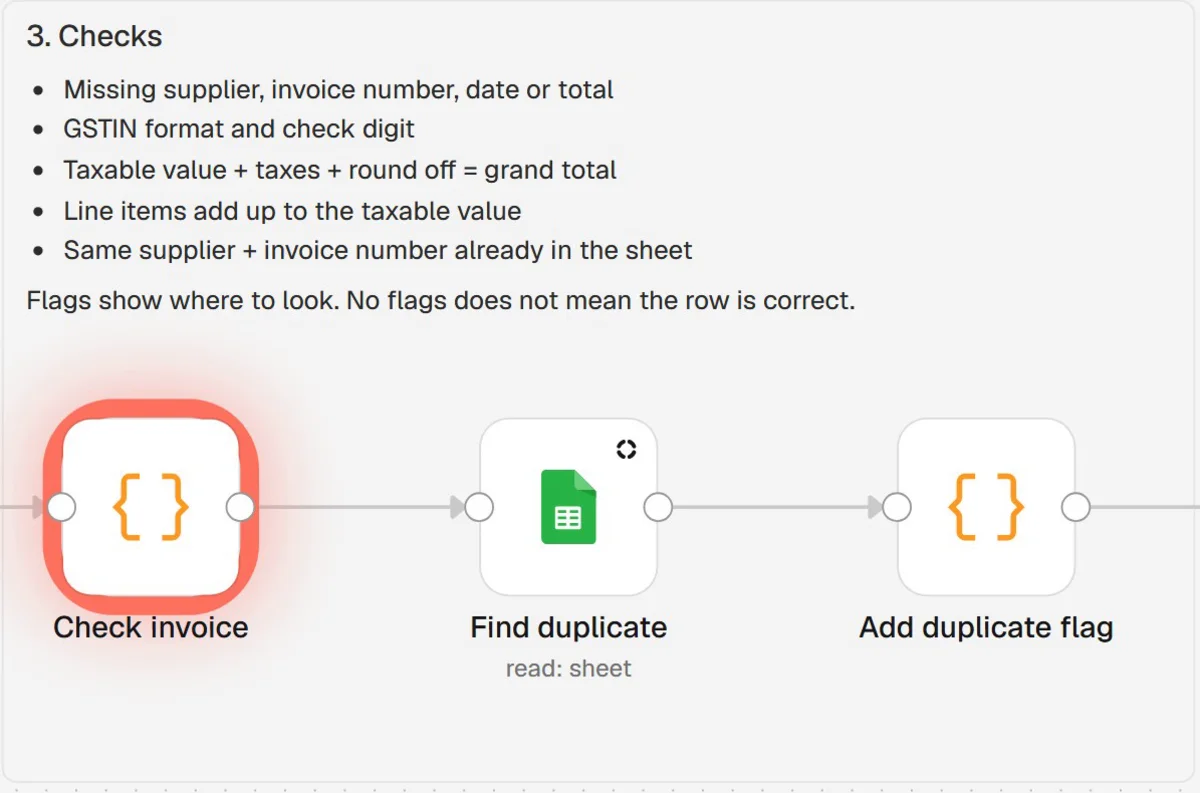
- A missing supplier name, invoice number, invoice date or grand total
- A GSTIN with the wrong format or a wrong check digit. This catches a single misread character.
- Taxable value + CGST + SGST + IGST + cess + round off that doesn’t match the grand total, within ₹1 (you can change that in the Settings node)
- Line items that don’t add up to the taxable value
- An invoice that’s already in your sheet: the same supplier, document type and invoice number
Flags only show where to look. A row without flags can still be wrong, so compare every row with its invoice before you approve it.
Step by step
Step 1: Import the workflow
Download the template and unzip it. In n8n, create a new, empty workflow, open the workflow menu (the three dots at the top right), choose Import from file and pick invoice-to-google-sheets-gemini.json.
Step 2: Make the review sheet
Open sheets.new to create a blank Google Sheet, give it a name such as “Invoice review”, and copy its link from the address bar. In n8n, open the Settings node and paste the link into sheetUrl, in place of PASTE_YOUR_GOOGLE_SHEET_LINK_HERE.
Leave the sheet empty. The first run writes the column headings.
Step 3: Connect Gemini
In Google AI Studio, create an API key. Treat it like a password: don’t paste it into chats or screenshots. In n8n, open the Gemini: read invoice node, create a new Google Gemini(PaLM) Api credential, paste the key and save. n8n tests the key when you save it.
Step 4: Connect Google Sheets
Open the Find duplicate node and create a Google Sheets OAuth2 API credential, then pick the same credential in the Save to sheet node.
On n8n Cloud, that’s a Sign in with Google click. On self-hosted n8n, Google first needs your own OAuth client in Google Cloud Console. The setup guide in the download walks you through it step by step, including the redirect URL and the test user.
Step 5: Test it with the sample invoices
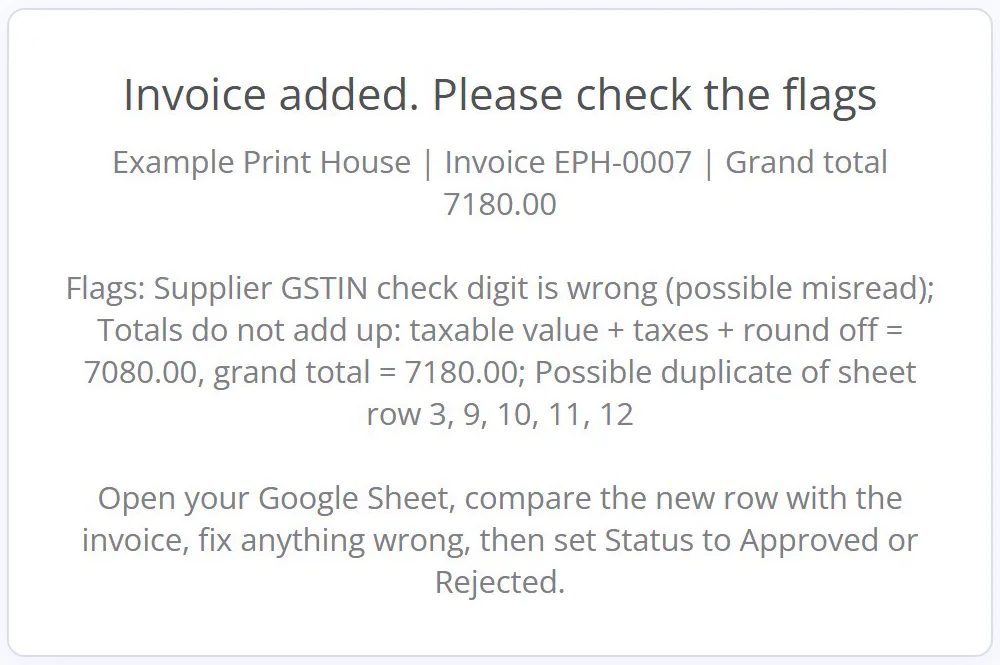
Click Execute workflow, and the form opens in a new tab. Upload sample-invoice-with-issues.png from the download and keep the tab open until the result shows.
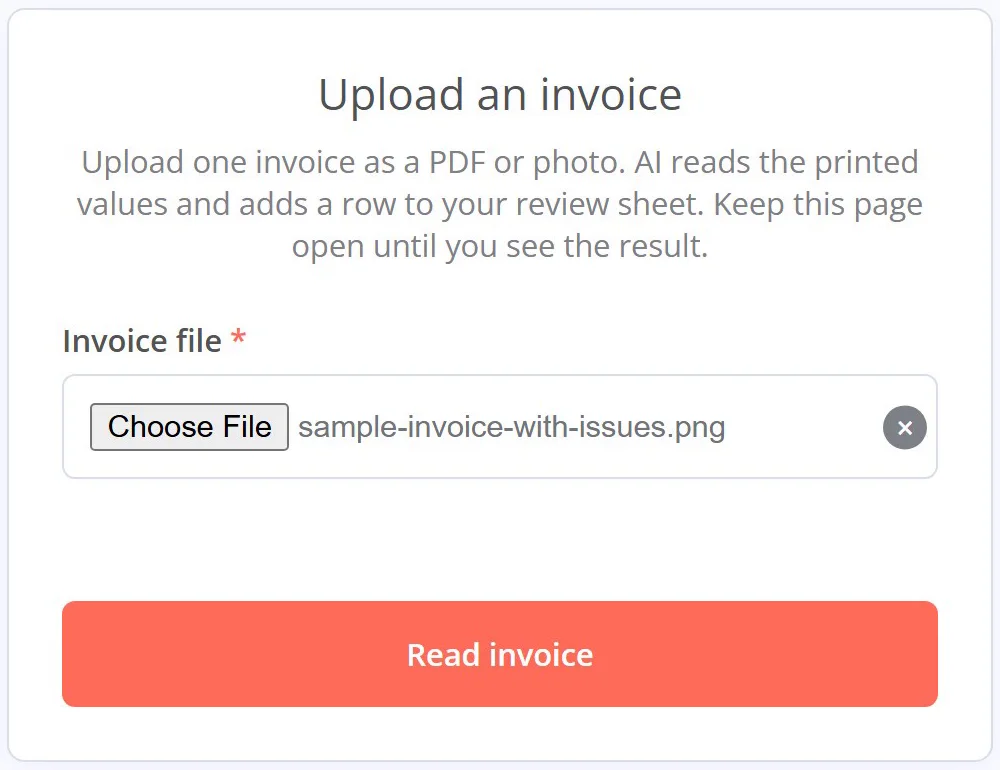
That sample has two mistakes planted on purpose, and both get flagged: the supplier GSTIN’s check digit is wrong, and the grand total is ₹100 more than the taxable value plus the taxes (7080.00 against 7180.00).
Then upload sample-invoice-clean.pdf. Its row should have no flags. Upload it once more, and the new row is flagged as a possible duplicate. When you’re done, delete the test rows and keep the heading row.
Step 6: Use it every day
Publish the workflow (in older versions: switch it to Active). Open the Upload invoice node, copy its Production URL and bookmark it: that form is how you upload invoices from now on.
For each new row: open the invoice, compare every value, fix what’s wrong, then set Status to Approved or Rejected. Tip: add a dropdown to the Status column (Data > Data validation) with Needs review, Approved and Rejected.
Anyone with the form link can upload, so keep it private, or turn on Authentication in the Upload invoice node.
Common errors and fixes
“This model is currently experiencing high demand”
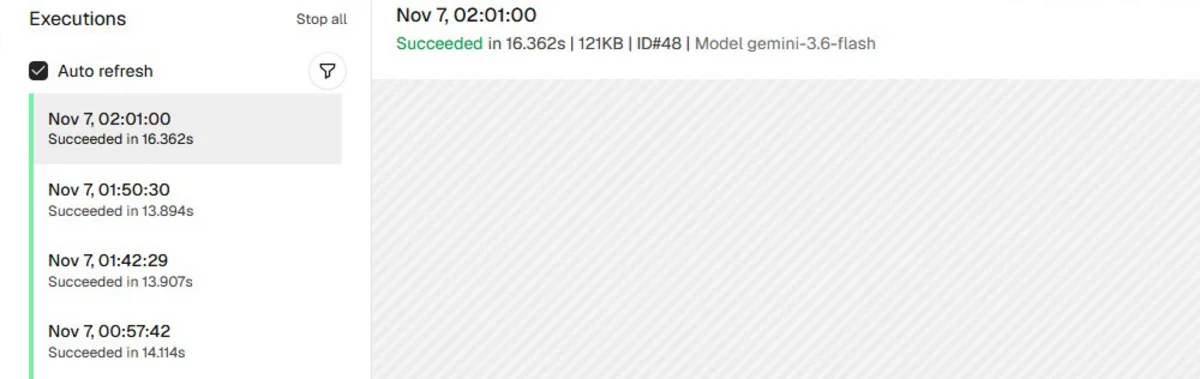
Gemini is busy. The workflow already tries 5 times. Wait a few minutes and upload again, or set geminiModel in the Settings node to another Gemini Flash model that AI Studio lists for your key. That’s why the video uses gemini-3.6-flash: on 7 November, gemini-3.8-flash (the model the download is set to) kept answering “high demand”.
“You exceeded your current quota”
Your Gemini key has used up its limit. Wait for the limit to reset, or turn on billing for the key’s project in Google AI Studio. It happened to me during testing on 31 October: the form showed Google’s message, and nothing was added to the sheet.
“Access blocked: … has not completed the Google verification process”
On self-hosted n8n: add the Gmail address you sign in with as a test user of your Google app (Google Auth Platform, then Audience, then Test users).
The form keeps loading
Gemini can take a while when it’s busy: on 31 October it took 22 to 100 seconds per invoice. Open Executions in n8n to watch the run.
A row says “AI answer could not be read”
Try a clearer scan or photo, or type the values from the invoice yourself.
How I tested it
On 31 October 2026, on n8n 2.45.7 (self-hosted on Windows) with gemini-3.8-flash, using the two sample invoices from the download:
- The clean PDF: one row, no flags. The negative round off (-0.82) was saved as a number.
- The photo with planted mistakes: both caught, the wrong GSTIN check digit and the ₹100 gap in the totals.
- The clean PDF a second time: flagged as a possible duplicate of the first row.
On 7 November I recorded the video with gemini-3.6-flash and the same sample photo: the same two flags, plus the duplicate flag, because I had uploaded that photo several times by then. I haven’t tested it with real invoices or on n8n Cloud yet.
What it doesn’t do
- It doesn’t decide GST rates, HSN/SAC codes or tax treatment. It reads what’s printed.
- It doesn’t look up a GSTIN on the GST portal. The check digit catches a single misread character, not a made-up number.
- It doesn’t read invoices from your email, and it doesn’t post anything to Tally, Zoho Books or any other accounting tool. You upload each invoice to the form.
Privacy: the invoice file goes to Google’s Gemini API. On the free tier, Google may use what you send to improve its products. For client invoices, use a paid API key and ask your client first. This template reads invoices; it isn’t tax or accounting advice.
Free template
Get the template for this tutorial
The workflow, two sample invoices and the setup guide, free under the MIT license. Join the TheCircuitAI newsletter and the download link shows right away.
You also get my newsletter: automations I built and tested, with their templates. Unsubscribe any time. Privacy policy
Done for you
Want this set up for you?
I can set it up to read invoices straight from your email, keep the files in Google Drive, or connect your accounting tool, all in your own accounts.
FAQ
Is the template free?
Yes, under the MIT license: use it, change it, use it for your clients.
Does it work on n8n Cloud?
It needs n8n 2.x. I tested it on self-hosted n8n. On n8n Cloud you skip the Google Cloud step, because Google Sheets has a “Sign in with Google” option there. I haven’t run the template on n8n Cloud myself yet.
Will it read every invoice correctly?
No AI reads every invoice perfectly, especially blurry photos. That’s why every row starts as Needs review, and why the checks are there.
Which Gemini model should I use?
The download is set to gemini-3.8-flash, the model I tested it with on 31 October. If that model is busy or not available for your key, set geminiModel in the Settings node to another Gemini Flash model that Google AI Studio lists for your key. I recorded the video with gemini-3.6-flash.
Can you connect it to my email or accounting tool?
Yes. See my services: I build it in your own accounts.